
| < 1: Getting started; Folders | Documentation index | 3: Building a flow-based chatbot: basic Blocks & Rules > |
2: Responders: intent-based chatbots
Responders are uncomplicated chatbots that are very suitable for answering a range of open questions rather than drilling down to find the answer to a specific problem that requires information to be collected first.
The key benefits of this approach are that it lets users ask questions in normal language, which can make the interaction feel more natural than following a set of prompts, and the output is limited to the answers that are designed into the chatbot so it is highly predictable. To ensure that your chatbot is able to anticipate the different questions that users could ask you just provide some sample questions for each response rather than the impossible task of trying to think of every possible combination of words that they might use.
Intent-based chatbots try to figure out what the user's intents are - what they intend to do when they come to use the chatbot. They do this using an AI approach called supervised machine learning to construct a language model from the example questions. This model is then used to work out the meaning of the user questions, by comparing them to the meanings extracted from the sample questions. Once the closest match has been found the corresponding answer is returned.
To get a feel for how a responder works we'll create one that introduces itself then attempts to answer questions about a restaurant, such as opening times, dietary requirements and so on.
Step-by-step
Click on "Responders" in the sidebar menu and then the "New" button in the top menu to start with a blank canvas.
Choose a Folder to store the Responder in, then enter a description of the Responder. The next pieces of information are:
- the first greeting to show the user
- the question to ask after each response
- the fallback question to ask if no matches are found
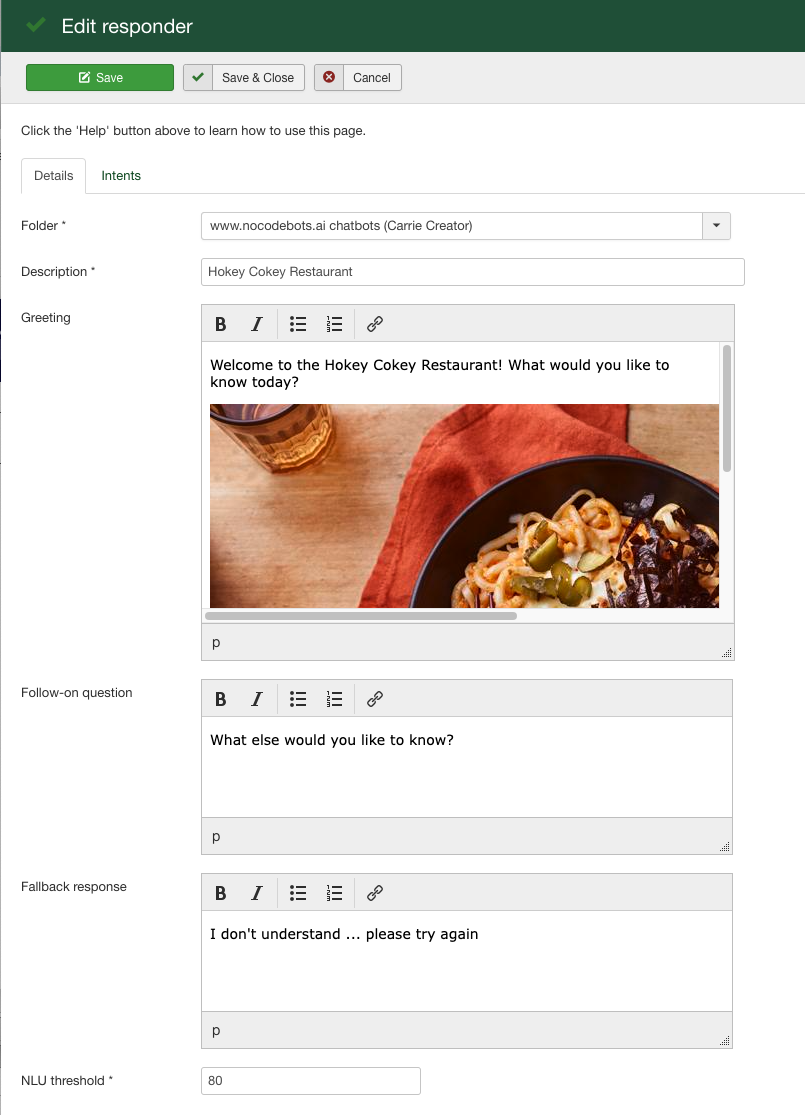
To learn how to embed images in these prompts please see The Block list view: advanced Block features
You can just use the default settings for the value at the bottom: the NLU (Natural Language Understanding) threshold specifies how closely the meaning of the user's question has to match example questions in this responder for an answer to be returned, and a value of 40% works well in almost all situations.
Next click on the "Intents" tab to display this screen:
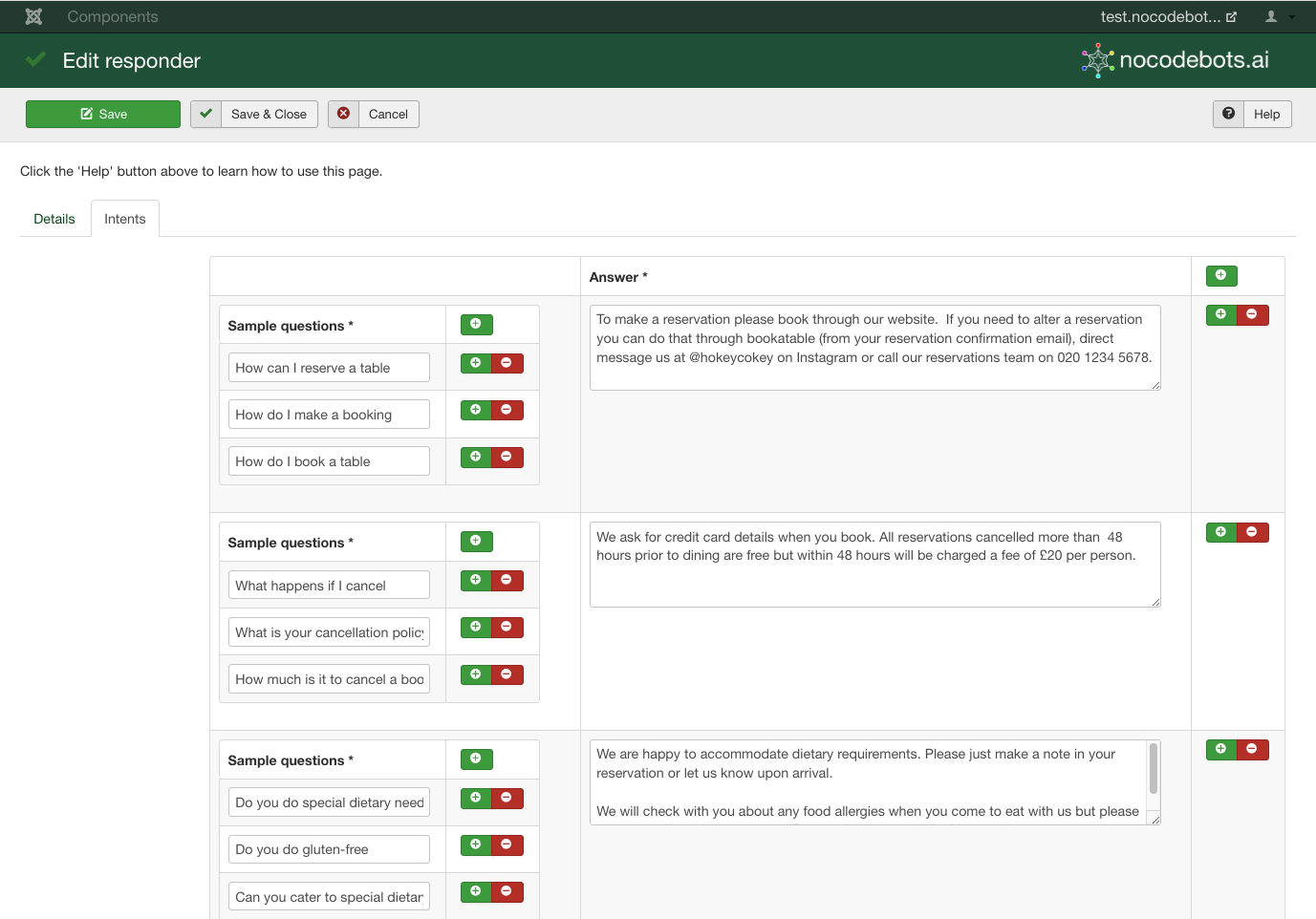
An "intent" is an answer to a question that a user "intends" to find out when they use your chatbot. It's made up of the answer and a set of sample questions that are used to figure out the meaning of the user's enquiry.
Add as many as you want, using the green "+" symbols to add new intents and sample questions. The "+" symbol in the heading sections adds a new item at the end, and the one next to each item adds a new one after that item.
You can delete intents and sample questions using the "-" symbol beside the item you want to remove.
Just click "Save & Close" when you've completed this version of your Responder.
You can now use this Responder to create a new chatbot by skipping ahead to Creating and launching chatbots, or continue to the next section to find out about how to create Flows.
| < 1: Getting started; Folders | Documentation index | 3: Building a flow-based chatbot: basic Blocks & Rules > |
